Make Your CRM Workflow Builder Reliable for Sales & Ops With Sonta Ai
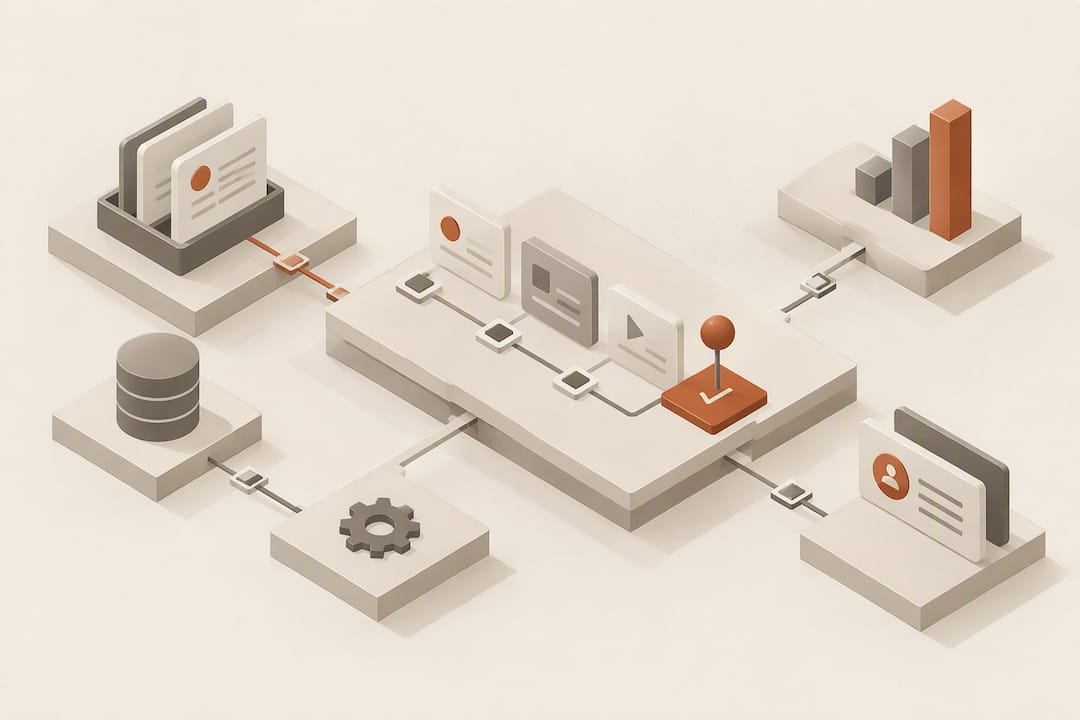
A CRM workflow builder is a visual, node-based tool that automates routine customer relationship management tasks without requiring code, letting sales and operations teams keep records current, route leads faster, and remove manual busywork from the pipeline. Teams reach for one when repetitive tasks (lead capture, enrichment, notifications, approvals) start consuming hours that should go to selling. The builder replaces manual updates with rules that fire automatically when data changes.
TL;DR:
- Most workflow builders rely on triggers, actions, logic, and data nodes, with real-time sync preferred for accuracy and speed.
- Proper configuration, labeling, and testing in sandbox environments are essential to prevent errors and ensure reliable automation.
- Common failure modes like recursive workflows and stale data can be mitigated with change-sensitive conditions, batching updates, and error logging.
- AI-native platforms like Sonta Ai update records in real time, reducing brittle conditions and false triggers caused by data going stale.
- Role-based permissions and performance-aware design are key to scaling workflows effectively without compromising security or speed.
Table of Contents
- Core features: triggers, actions, logic, data nodes, and connectors
- How the visual canvas works and how to configure nodes safely
- Planning, testing, and publishing workflows safely
- Reusable workflow patterns: lead capture, enrichment, routing, approvals
- Top failure modes and concrete mitigations
- How AI-native platforms like Sonta Ai implement reliable workflows
- User permissions and access control in workflow builders
- Performance optimization and scalability of CRM workflows
- Audit trails and monitoring workflow executions
- When to DIY vs. hire help for workflow building
- How Sonta Ai can help with your workflow builds
- When to DIY vs. hire help for workflow building
- Authoritative docs and guides to read next
- Sources
- FAQ
Core features: triggers, actions, logic, data nodes, and connectors
Most visual builders organize their capabilities into a node palette, and understanding each category makes the rest of the build process far less confusing. Triggers start a flow: an event in the CRM, a scheduled time, or an incoming webhook. Actions carry out the work, creating or updating records and sending notifications. Logic nodes add conditions, loops, and delays so the flow branches based on real data rather than running the same path every time. Data nodes handle transformation, mapping, and enrichment between systems.
Documentation for a widely used workflow builder describes exactly this structure: triggers, CRM actions, logic, data transforms, and integration nodes, each configurable through its own panel.
- Triggers: event-based, scheduled, or webhook-initiated starts.
- Actions: record creation, updates, and outbound notifications.
- Logic: conditions, loops, and delays that branch the flow.
- Data nodes: transformation, field mapping, and enrichment.
Connectors matter just as much as the nodes themselves. Real-time sync keeps two systems aligned the moment a change happens, while periodic sync batches updates on a schedule, which is cheaper computationally but introduces lag. Field mapping errors, mismatched data types, unmapped optional fields, inconsistent date formats, are the most common source of broken flows once a builder goes live.
How the visual canvas works and how to configure nodes safely
The canvas is where triggers, actions, and logic nodes get wired together, and every mature builder follows a similar configuration pattern once you open a node.
- Start with the basic tab, which holds the required fields and default values a node needs to run.
- Switch to advanced settings only when you need retry logic, timeouts, or a code or rich-text editor for custom logic.
- Use the variable picker to pass data between nodes instead of typing values by hand.
- Avoid hard-coded record IDs; they break the moment a record is deleted or recreated in a different environment.
- Label each node with a clear name, an API name, and a short description of what it does.
That last step sounds minor until a workflow breaks six months later and nobody remembers what a node named “Flow2_Copy” was supposed to do. Documentation and labeling are treated as core reliability practice by builders like the one described in Expedify’s automation reference, which also notes that retry logic, timeouts, and continue-on-error controls are standard configuration options once a flow moves past a simple test.
Planning, testing, and publishing workflows safely
Before you open a canvas, sketch the flow on paper or a whiteboard: what triggers it, what decisions it makes, and what data it needs at each step. Salesforce’s flow best-practice guidance recommends diagramming flows and documenting elements with labels and API names before building, specifically because it prevents rework once the flow gets complex.
- Build in a sandbox or developer environment first, and test with synthetic data rather than live customer records.
- Build small chunks, verify each one works, then add the next piece rather than building the entire flow at once.
- Group database changes at the end of a flow instead of scattering create or update actions throughout, which keeps you within platform limits and makes rollback simpler.
- Write explicit error handlers that log failures instead of letting a flow fail silently.
- Use versioning when promoting a flow from sandbox to production, and stage the migration rather than flipping it live for every record at once.
The same Salesforce guidance is explicit that grouping database edits at the end of a flow avoids governor and performance limits while simplifying the logic you need to write for rollback. Enterprise workflow documentation from Oracle makes a similar point from a different angle: treat a workflow as production infrastructure, not a quick script, because an incorrect condition can interrupt normal transactions once it’s live.
Pro Tip: Test a new flow against your three messiest real-world records before you trust it with the rest of your database.
Reusable workflow patterns: lead capture, enrichment, routing, approvals
Certain sequences show up in almost every CRM implementation, and building them as reusable patterns saves you from reinventing the same logic for every new campaign or vertical. A practitioner architecture for CRM automation models the baseline lead-to-deal sequence as capture, normalize identity, enrich, route, create follow-ups, and report, arguing that keeping each step deterministic is what makes the whole pipeline predictable rather than fragile.
- Lead capture pipeline: capture the form or webhook submission, dedupe against existing contacts, enrich with firmographic data, score the lead, then route it to the right owner.
- Deal stage automation: moving a deal to a new stage automatically generates the next follow-up task and notifies the owner.
- Approval flow: a request triggers a timer, sends reminders if unanswered, and escalates to a manager after a set delay.
- Webhook integration: an external enrichment provider posts data back into the CRM, which then updates the record and triggers downstream actions.
Each pattern is a starting template, not a rigid rule. The point is to keep the sequence deterministic so you can debug it when something goes wrong.
Top failure modes and concrete mitigations
Recursive workflows are one of the most common ways a flow builder breaks in production: one update triggers a second flow, which updates a field that triggers the first flow again. Oracle’s workflow administration guidance recommends change-sensitive conditions or consolidating related updates into a single workflow rather than letting several flows chase each other.
- Use subflows to separate user context from system context, since permission errors often surface only when a flow runs under a different user’s access level.
- Never place a database write inside a loop; batch updates and run them once at the end of the flow to avoid hitting record-processing limits.
- Simulate an outage or failed API call before launch to confirm your error handler actually catches it.
- Route caught exceptions to an admin log instead of failing silently.
A visually attractive builder alone is not enough: analysis of Salesforce Flow practices notes that automation only succeeds when the underlying records and data governance behind it are reliable.
How AI-native platforms like Sonta Ai implement reliable workflows
A recurring problem in traditional flow builders is that conditions are written against fields that go stale between syncs, which is exactly the kind of brittleness that causes the recursion and mapping errors covered above. Sonta Ai’s approach is to keep records updated in real time through AI agents rather than periodic batch jobs, so the conditions a workflow checks are working against current data rather than a snapshot from the last sync cycle.
- AI agents handle lead qualification and pipeline updates directly, cutting down the number of manual routing steps a human would otherwise perform.
- Self-updating records reduce the number of brittle “if field equals X” conditions that break when data goes stale between syncs.
- The AI Efficiency Diagnostic runs a short scan of existing workflows to flag inefficiencies and recommend fixes.
- The Sonta AI Academy publishes hands-on guides for configuring automations and agent-driven workflows.
None of this replaces the planning and testing discipline described earlier. It changes what the workflow is reacting to.
User permissions and access control in workflow builders
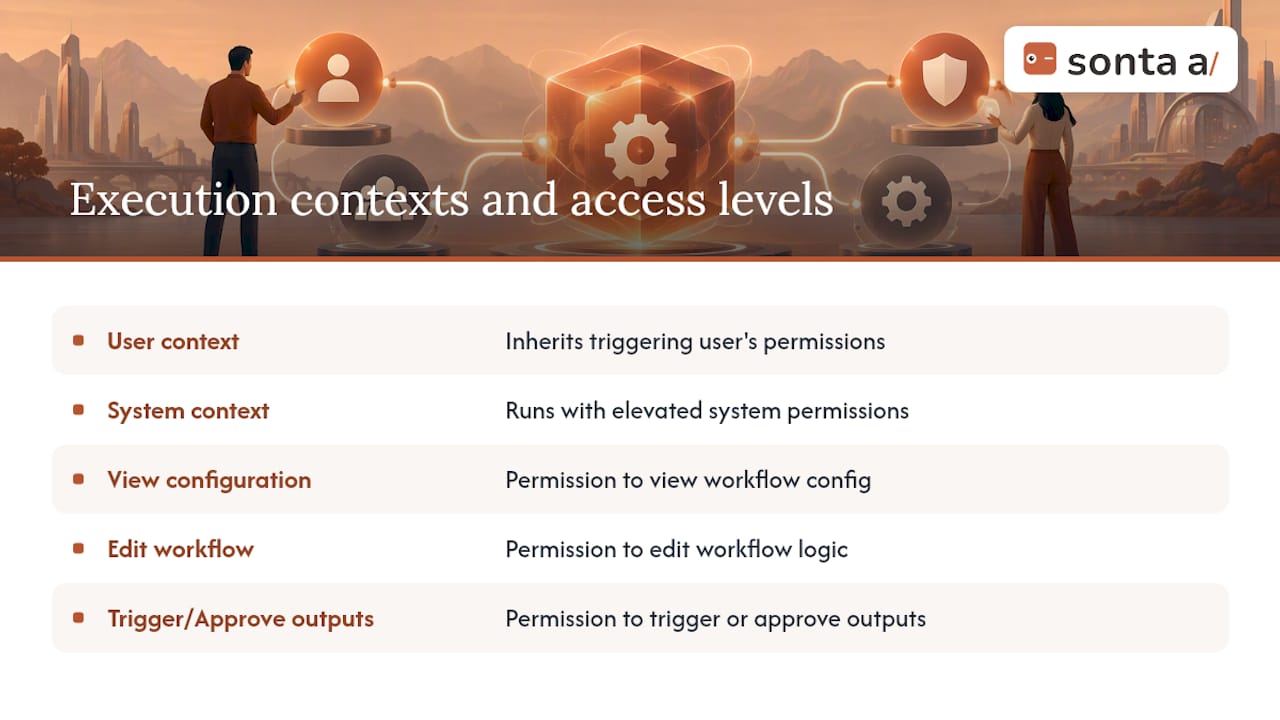
Every workflow runs under some execution context, and getting that context wrong is one of the fastest ways to break a flow that worked perfectly in testing. A flow built and tested by an administrator often has broader access than the sales rep whose action eventually triggers it in production, which means a condition that reads a field the rep can’t see will fail silently or throw a permission error.
Most builders let you choose whether a flow runs in “user context,” inheriting the permissions of whoever triggered it, or “system context,” running with elevated access regardless of who triggered it. System context is useful for background automation that needs to touch records outside a rep’s normal visibility, such as cross-territory lead reassignment, but it also means the flow can act beyond what any single user is allowed to do, which raises the stakes if a condition is wrong.
Role-based access controls typically apply at three levels: who can view a workflow’s configuration, who can edit it, and who can trigger or approve its outputs. Separating those permissions matters most in approval flows, where the person requesting approval, the person granting it, and the person who can edit the approval logic itself should rarely be the same set of people. Sonta Ai’s Users, Roles & Access documentation covers how execution context and role permissions interact within its own workflow builder, which is a useful reference point regardless of which platform you use, since the underlying access-control problem is the same everywhere.
Performance optimization and scalability of CRM workflows
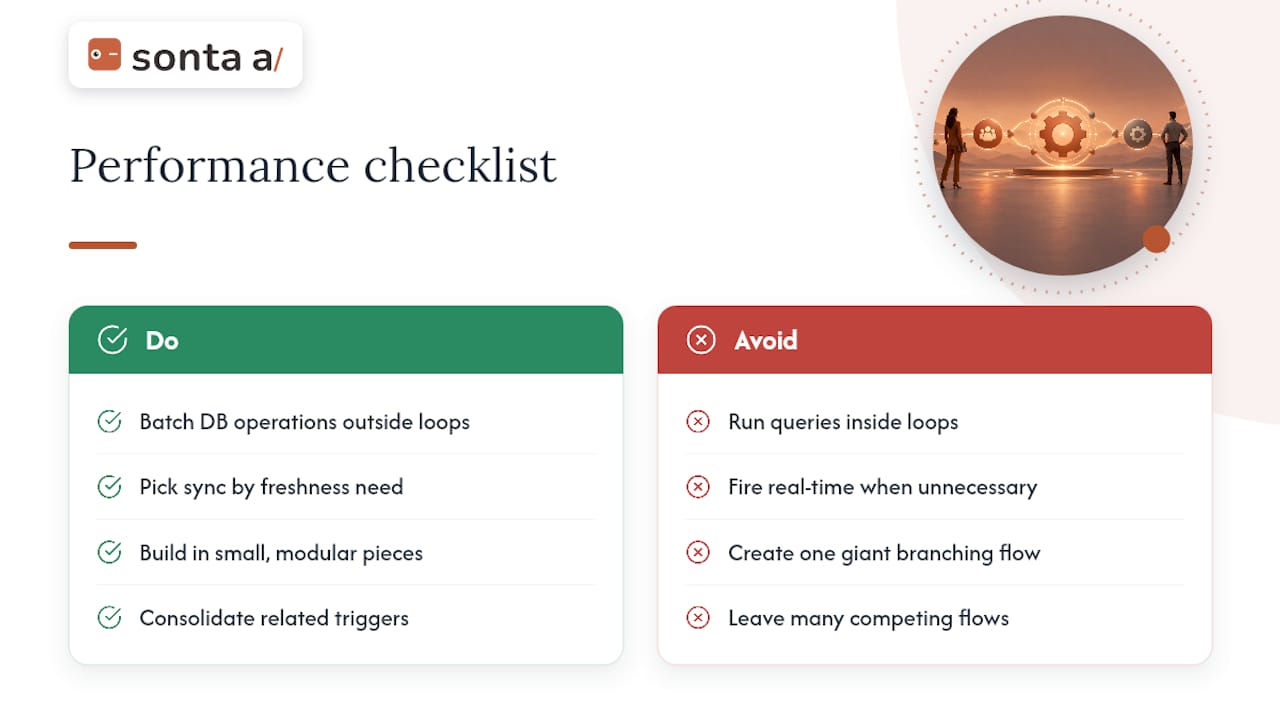
A workflow that runs fine on 500 test records can slow to a crawl at 50,000, and the usual cause is the same pattern that trips up governor limits: database operations placed inside a loop instead of batched at the end. Every additional query, update, or callout inside a loop multiplies with the number of records it processes, so a flow that seems instant in a demo can time out or queue heavily once real volume hits it.
Real-time sync connectors add another scaling variable. They keep data current, which is valuable for time-sensitive actions like lead routing, but every real-time call adds load to both systems involved. Periodic sync trades some freshness for lower load, batching updates on a schedule instead of firing on every change. Choosing between the two is less about which is universally better and more about which fields actually need to be current to the second versus current to the hour.
Long-running flows with many branching conditions also become harder to reason about as they scale, which is part of why the earlier build-in-small-chunks approach pays off later. A flow assembled from a few well-tested, modular pieces is easier to optimize than one giant branching tree, because you can isolate which segment is slow instead of profiling the whole thing at once. Consolidating related triggers, the same fix that helps avoid recursion, also reduces the total number of flows competing for processing resources at any given moment.
Audit trails and monitoring workflow executions
Every workflow eventually fails in a way nobody predicted, and the only way to fix it quickly is to know exactly what happened, when, and to which record. An audit trail that logs each execution, its trigger, the data it touched, and its outcome turns a mystery into a five-minute investigation.
Monitoring goes a step further than logging by watching for patterns across many executions rather than one at a time: a spike in failed enrichment calls, a sudden increase in flows hitting timeout limits, or a routing rule that keeps sending leads to an inactive rep. Dashboards built around this kind of execution data let an admin catch a broken integration before it accumulates hundreds of miscategorized records. Sonta Ai’s Reports & Dashboards documentation walks through setting up that kind of monitoring inside its own workflow environment.
At minimum, an audit trail should capture the triggering event, the fields changed, the user or system context the flow ran under, and any error thrown. That last point connects directly back to the error-handling practices covered earlier: a caught exception that isn’t logged anywhere is barely better than one that fails silently, because nobody will know to fix it until a customer complains.
When to DIY vs. hire help for workflow building
Build it yourself when your team already understands the data model and the integration is simple. Bring in a workflow build sprint or migration service when integration complexity, data quality issues, or SLA risk make a mistake expensive. A short sprint typically resolves faster than an open-ended internal project competing with daily sales work.
How Sonta Ai can help with your workflow builds
Sonta Ai pairs a visual workflow builder with self-updating records, so the conditions your flows depend on stay accurate without a separate enrichment step. Teams that want a faster route to production-grade automation can use the workflow build sprint instead of building from scratch, or start with the AI Efficiency Diagnostic, a 30-minute scan that flags where existing workflows are leaking time or accuracy.

Plans start at $16 per month per seat on the Solo tier, scaling up through Core and Pro for teams that need more automation depth. If your integration needs are more specific, Sonta Ai’s product page outlines how staged-autonomy AI agents handle lead qualification and pipeline updates directly inside the workflow layer.
When to DIY vs. hire help for workflow building
(covered above)
Authoritative docs and guides to read next
- Salesforce’s flow preparation guidance for planning and documentation standards.
- Oracle’s workflow administration and migration docs for testing and rollout practice.
- Expedify’s workflow builder reference for node and configuration patterns.
- Sonta Ai’s Create and activate an automation guide for a product-specific walkthrough.
Sources
- Plan for Success with Flow Builder Best Practices | Salesforce Help
- Administering, testing, and migrating workflow policies | Oracle
- Workflow Builder | Expedify Documentation
FAQ
Will CRM be replaced by AI?
AI is changing how CRM records get updated and how workflows get triggered, shifting from manual entry toward automated, self-updating data, but the CRM as a system of record isn’t disappearing. What’s changing is who does the routine upkeep work inside it: increasingly, AI agents rather than reps.
What are the top 3 CRM tools?
There’s no single authoritative ranking of “top” CRM tools, since the best fit depends on team size, industry, and whether you need AI-native record updates or a traditional data-entry model. Evaluate any shortlist against your own integration needs, workflow complexity, and how much manual upkeep you’re trying to eliminate.
Can I build my own CRM?
Yes, technically capable teams can build a CRM from scratch or heavily customize an existing platform’s workflow builder to fit a specific process. For most teams, though, configuring workflows inside an existing CRM, or using a workflow build sprint to accelerate that setup, is faster and less risky than building the underlying system yourself.
What is a CRM workflow?
A CRM workflow is an automated sequence of triggers, actions, and logic that carries out a routine task, such as routing a new lead or creating a follow-up, without manual intervention. It typically runs inside a visual builder where each step (trigger, action, condition) is configured as a node on a canvas.