Automatic Activity Capture for CRM Admins: 30–180 Days of History
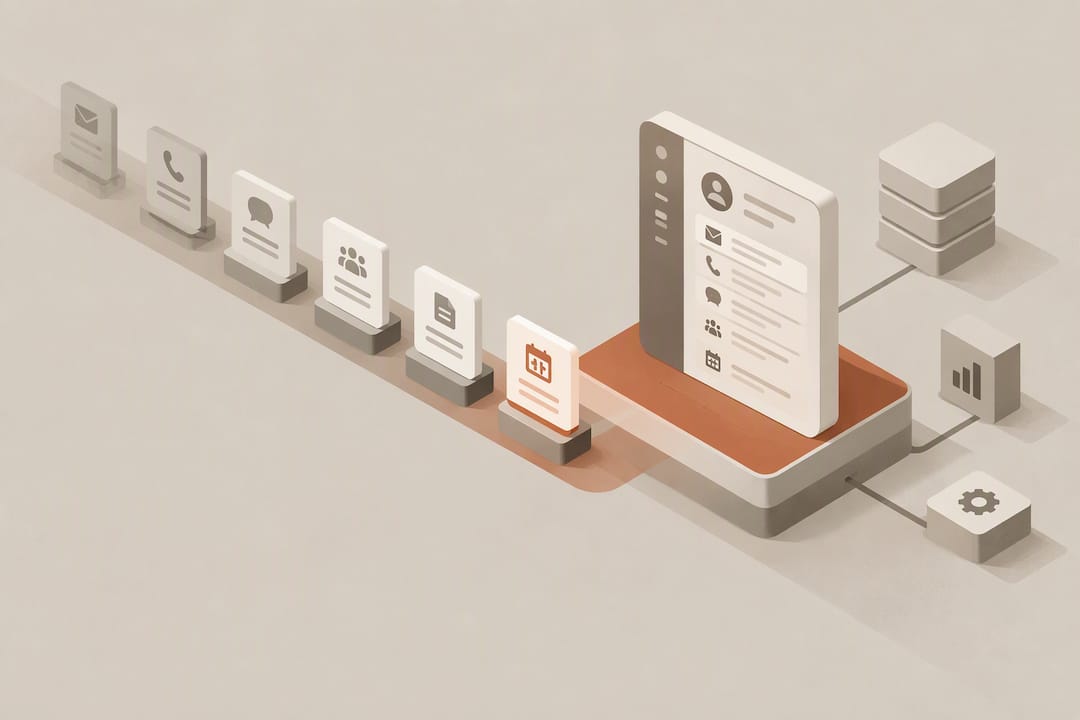
Automatic activity capture is the process of syncing email and calendar activity directly into a CRM without manual logging, giving sales teams a fuller, more accurate record of every customer interaction. It cuts down the time reps spend on data entry and builds timelines that reflect what actually happened, not what got typed in after the fact. Reliability, though, depends heavily on how admins and users configure permissions and sharing settings.
TL;DR:
- Check whether captured activity becomes native CRM records: timeline only entries may be missing from standard reports, exports, automations, and downstream AI tools.
- Expect reliable participant, subject, and timestamp capture, but do not rely on passive logging for attachments, BCC recipients, custom fields, or deal sentiment.
- Pilot with 20 to 50 reps for 30 days while admins verify consent, sharing rules, access policies, and token renewal before expanding.
- Complex buying groups and long sales cycles need more than passive logging; body text adds context but increases privacy exposure and maintenance demands.
Table of Contents
- How automatic activity capture works under the hood
- Where captured data lives and who can see it
- What activity capture typically logs, and what it misses
- Setting up automatic capture: an admin and user checklist
- Making automatic capture operationally useful, not just technically functional
- How Sonta AI approaches activity capture differently
- When passive capture is enough, and when it is not
- See what your own activity data is actually missing
- FAQ
- Sources
How automatic activity capture works under the hood
Most automatic capture tools connect to a mailbox and calendar through one of two models: OAuth-based user connections, where each rep authorizes access individually, or server-side tenant connectors, where an admin grants access at the organization level. The server-side model tends to be more stable for larger teams because it does not depend on every individual re-authenticating, but it requires more upfront tenant-level configuration. Most platforms also apply a backfill window, pulling in historical messages and meetings from the past 30 to 180 days so new CRM records do not start with an empty timeline.
What actually gets read varies by platform and by privacy setting. Some systems read only metadata: sender, recipients, timestamps, and subject lines. Others read message bodies to extract additional context, which raises separate privacy questions we cover later. Calendar sync typically captures meeting title, attendees, start and end times, and location, though not always the meeting description or attached agenda.
The harder technical problem is matching. A captured email or calendar event is useless until the system figures out which lead, contact, or account it belongs to. Most tools rely on a handful of heuristics:
- Direct email address matching against existing contact or lead records.
- Domain matching when an individual contact is not found but the company domain is known.
- Recency logic that favors the most recently touched record when multiple matches exist.
- Participant overlap scoring when a thread or meeting involves several known contacts at once.
These heuristics work well for straightforward one-to-one email threads but break down with group emails, personal addresses, or contacts who switch jobs and email domains. According to Microsoft’s documentation on auto capture in Dynamics 365 Sales, the system suggests emails and meetings related to a record based on matching logic, but those suggestions stay private until a user actively confirms them.
Sync behavior also differs in timing. Real-time sync pushes new activity into the CRM within seconds or minutes, which matters for teams that rely on live pipeline views during calls. Batch sync, more common in older integrations, can introduce delays of an hour or more, which creates a lag between what happened and what the CRM shows. That lag matters most for managers pulling same-day activity reports or for automations that trigger on new interactions.
Where captured data lives and who can see it
The single most consequential design decision behind any automatic capture system is whether captured items live only on an activity timeline or get written as full records into the CRM’s native database tables. This distinction shapes everything downstream: reporting, exports, retention, and whether other features can even access the data.
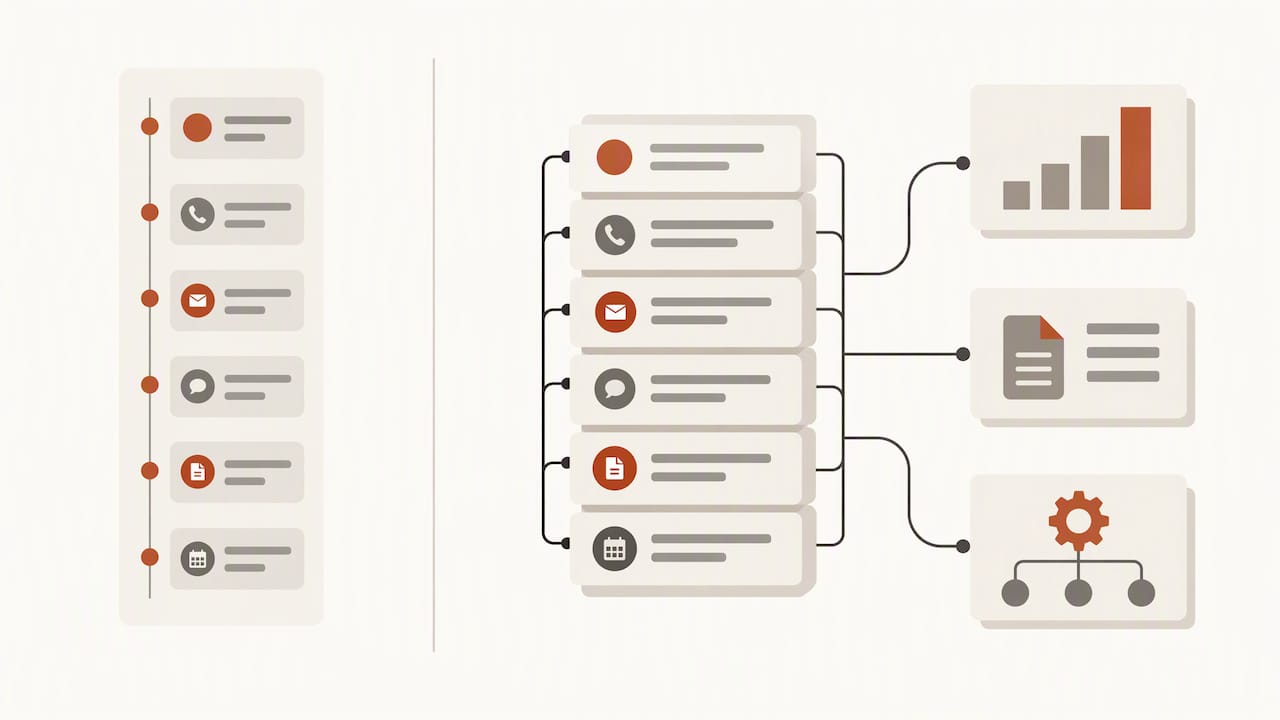
Timeline-only systems display emails and meetings as a read-only feed attached to a record. They look complete, but they are not always queryable through standard reports or APIs the way a native Task or Event record would be. Platforms that write captured items into native tables, by contrast, make that data available to the full reporting and automation stack, at the cost of more storage and more governance overhead.
A few practical consequences follow from this:
- Retention policies often differ between timeline displays and native records, so a captured email might disappear from view after a set period even though the underlying message still exists in the mailbox.
- Exportability is inconsistent: timeline items frequently cannot be bulk-exported the same way native activity records can.
- Visibility defaults to private suggestions in many systems, meaning a captured item is invisible to the rest of the team until someone explicitly “tracks” it into a shared, visible state, a pattern confirmed in Microsoft’s auto capture documentation.
- Downstream AI features, like next-step suggestions or forecasting models, typically only read from native records, so timeline-only data can be invisible to the tools meant to act on it.
One figure worth sitting with: sellers who partner with AI tools are 3.7 times more likely to meet quota, according to Gartner’s 2024 sales survey. That advantage depends on AI systems actually having access to clean, structured activity data, which is precisely what a timeline-only storage model can quietly withhold.
The practical takeaway for admins: know which storage model your platform uses before you build reports or automations around activity data, because a dashboard that looks fine in the UI can be pulling from an incomplete data source underneath.
What activity capture typically logs, and what it misses
Automatic capture tools are good at the predictable parts of an interaction and inconsistent with everything else. Knowing the difference in advance saves teams from discovering gaps the hard way, usually during a quarterly pipeline review.
- Participants and addresses: Sender, recipients, and CC’d contacts are captured reliably in nearly every implementation.
- Subject lines and timestamps: Subject, send time, and meeting start and end times are standard fields across platforms.
- Meeting location and format: Physical location or video conferencing links attached to calendar invites are usually captured.
- Body excerpts: Some tools capture a snippet or full body text of email content, though this is often a configurable, sometimes disabled, setting due to privacy concerns.
- Attachments: Files attached to emails are rarely captured along with the message itself; most systems log that an email occurred without preserving what was attached to it.
- BCC-only recipients: Contacts who were blind-copied frequently do not appear in captured records, since BCC data is often stripped before it reaches the sync layer.
- Custom tracked fields: Capture tools log the interaction itself but rarely populate custom fields a team has built for deal stage, intent signals, or qualification criteria.
- Sentiment or intent signals: Whether a conversation went well, stalled, or raised a red flag is not something standard capture extracts; it logs that contact happened, not what it meant.
Independent reviews of platforms like Einstein Activity Capture consistently point to these same gaps: strong on logging that an interaction occurred, weak on preserving the nuance inside it.
The operational consequence is straightforward. Teams that rely solely on automatic capture for pipeline hygiene end up with timelines full of activity but short on context. A rep can see that fifteen emails went back and forth with a prospect without knowing whether the deal is progressing or stalling. That gap is exactly where manual notes, tagging conventions, or additional automation need to fill in what passive capture cannot.
Setting up automatic capture: an admin and user checklist
Rollouts tend to fail less because of software bugs and more because responsibilities between admin and end user were never clearly split. Getting this right upfront prevents the slow trickle of support tickets that follow a messy launch.
Admin-level tasks come first and set the ceiling for what is possible:
- Configure tenant-level consent scopes so the integration can read the specific mailbox and calendar data it needs, no more and no less.
- Set conditional access policies in coordination with IT so the connector is not blocked by security rules designed for other tools.
- Define default sharing and visibility rules for captured items before rollout, not after reps start asking why they cannot see teammates’ activity.
- Establish a token refresh and re-authentication policy, since expired tokens are the single most common cause of silent capture failures.
User-level responsibilities follow:
- Connect the mailbox and calendar account during onboarding rather than leaving it as an optional step.
- Review and set personal privacy settings, since by default most platforms treat captured items as private suggestions until explicitly tracked.
- Approve the permission scopes requested, understanding what the integration can and cannot read.
Common failures and their fixes are predictable once you have seen them a few times. Capture silently stops when a token expires. The fix is a re-authentication prompt, ideally automated rather than relying on a rep to notice. Conditional access policies block the connector when IT tightens security without notifying the CRM admin. The fix is coordinating policy changes across both teams. Suggestions never appear because a user never tracked them. The fix is training, reinforced by a default that favors visibility over excessive privacy.
Pro Tip: Pilot automatic capture with 20 to 50 reps over a 30-day window before a full rollout. That sample size surfaces conditional access and mailbox-rule edge cases faster than waiting for an org-wide launch to expose them.
Making automatic capture operationally useful, not just technically functional
Capture working as designed is a separate question from capture actually improving how a team sells. Closing that gap takes governance, not just configuration.
Start with sharing defaults and ownership. Decide, in writing, who is responsible for reviewing captured items that cannot be confidently matched to a record. Without a named owner, these items pile up unreviewed and the “fuller timeline” promise of automatic capture quietly erodes.
A few practices make the difference between capture that sits idle and capture that drives decisions:
- Track capture coverage as a KPI, measuring the percentage of reps with an active, authenticated connection rather than assuming adoption from the rollout date.
- Measure activity completeness by comparing captured volume against known outreach cadences to catch silent sync failures early.
- Run a short training session covering the difference between a private suggestion and a tracked, team-visible record, since this single distinction causes most “why can’t I see this” tickets.
- Build automation rules that attach deal stage or next-step tags to high-confidence captured items, reducing the manual cleanup that otherwise falls to reps or ops.
Teams piloting data-entry automation at scale often structure this as a 50 to 200 document pilot, measuring coverage and completeness before expanding further. The same logic applies to activity capture: measure before you scale, and assign ownership before you measure.
How Sonta AI approaches activity capture differently
Our approach starts from a different premise than most activity capture add-ons: records should update themselves continuously, not just receive a stream of logged emails and meetings that a rep still has to interpret. Records self-update in real time, powered by configurable AI agents that work across models chosen per task rather than a single fixed engine.
That matters directly for the gaps described above. Where standard activity capture logs that a meeting happened, our agents can enrich that record with recommended next steps, flag stalled threads, and surface account context automatically, closing part of the distance between “activity happened” and “activity means something.” This system is built to eliminate the manual data entry ceiling that legacy CRMs hit once a team scales past a handful of reps, and AI or automation usage is not metered on top of any plan.
For teams unsure where their current setup is leaking time or data, our AI Efficiency Diagnostic runs in 30 minutes and identifies where operational gaps, including incomplete activity capture, are costing the team. It is the fastest way to see what your current tech stack is actually missing before deciding what to fix.
A few specific ways this plays out:
- Agents can auto-populate custom fields that standard capture tools leave blank, using context from the same email or meeting.
- Meeting notes automation extends capture beyond metadata into structured summaries tied to the record.
- Automated follow-up sequences can trigger directly from captured activity, closing the loop between logging and action.
When passive capture is enough, and when it is not
Automatic capture earns its place in any CRM stack. The honest question is whether passive logging is the ceiling of what a team needs or just the floor.
Teams with short sales cycles, high email volume, and relatively simple matching needs (one contact, one account, clean domains) get most of the value from passive capture alone. The timeline fills in, manual entry drops, and reporting improves without much additional engineering.
Teams with complex buying committees, long cycles, or heavy reliance on custom qualification fields hit the ceiling faster. Passive capture tells you contact happened; it does not tell you whether a deal is moving. That is where the completeness-versus-privacy-versus-maintainability trade-off becomes real: broader body-text capture improves context but raises privacy exposure, and every additional matching rule you add increases the maintenance burden on whoever owns the CRM.
Our view is to treat automatic capture as the foundation, not the finished system, and budget for the layer of automation that interprets what got captured.
— Pavel
See what your own activity data is actually missing
The gaps covered here, unmatched contacts, invisible private suggestions, timelines that look full but report empty, are exactly what our AI Efficiency Diagnostic is built to surface in half an hour. We designed our CRM so records update themselves continuously instead of waiting on a rep to notice what automatic capture missed.

If you want to see what an AI-native approach to capture and record updates looks like for your own pipeline, our pricing page outlines the Solo, Core, Pro, and Enterprise plans, and our platform overview covers how the agentic CRM works end to end. Run the diagnostic first if you want a concrete list of where your current setup is leaking data before you commit to anything.
FAQ
What is a good alternative to Einstein Activity Capture?
Alternatives range from native CRM connectors built into platforms like Dynamics 365 to AI-native CRMs that update records automatically rather than only logging activity passively. The right choice depends on whether you need basic email and calendar sync or deeper automation that acts on captured data, such as enrichment or next-step suggestions.
What does it mean when Einstein Activity Capture is enabled?
When Einstein Activity Capture is enabled, email and calendar activity from connected accounts syncs into Salesforce and appears on related record timelines. Items typically show as suggestions tied to matched leads, contacts, or accounts, and some remain private until a user explicitly tracks them, based on Salesforce’s documentation.
How do I reset Einstein Activity Capture?
Resetting generally involves disconnecting and reconnecting the affected user’s email and calendar account through the configuration settings, which forces re-authentication and clears stale sync tokens. Admins should also check conditional access policies and token expiry, since these are common causes of capture appearing broken when it is actually a permissions issue.
How much does Einstein Activity Capture cost per user per month?
Pricing for Einstein Activity Capture is set by Salesforce directly and is not something we publish or control. For current per-user pricing, checking Salesforce’s own pricing or sales channels directly is the most reliable approach.
Does automatic activity capture work across different email and calendar platforms?
Most automatic capture tools support major providers like Microsoft 365 and Google Workspace, but the depth of integration varies by platform and by vendor. Compatibility issues most often show up after provider-side API changes, which is why ongoing connector maintenance matters as much as initial setup.
Sources
- Gartner press release: sellers who partner with AI are more likely to meet quota
- Ultimate Guide to Einstein Activity Capture (SalesforceBen)
- Auto capture in Dynamics 365 Sales | Microsoft Learn